
How to Create Client in Regnum Digital From Web Portal
⭐ In this Article we will learn how to create Client
How to create client profile in Regnum Digital Portal using Web portal. Unlock the power of seamless collaboration and efficient communication with our comprehensive guide on creating a robust Client Intranet. In this article, we walk you through the essential steps.
🔗 Login to your Digital Partner Portal (IIN IS NOW UCC – 20-12-2025)
In your Digital Partner portal, all NSE related features can be accessed from the Invest Online menu. Profile list is where you can
- See all your IINs
- Create New IINs
- Create Mandates for IIN
- Proceed for Investing through an IIN
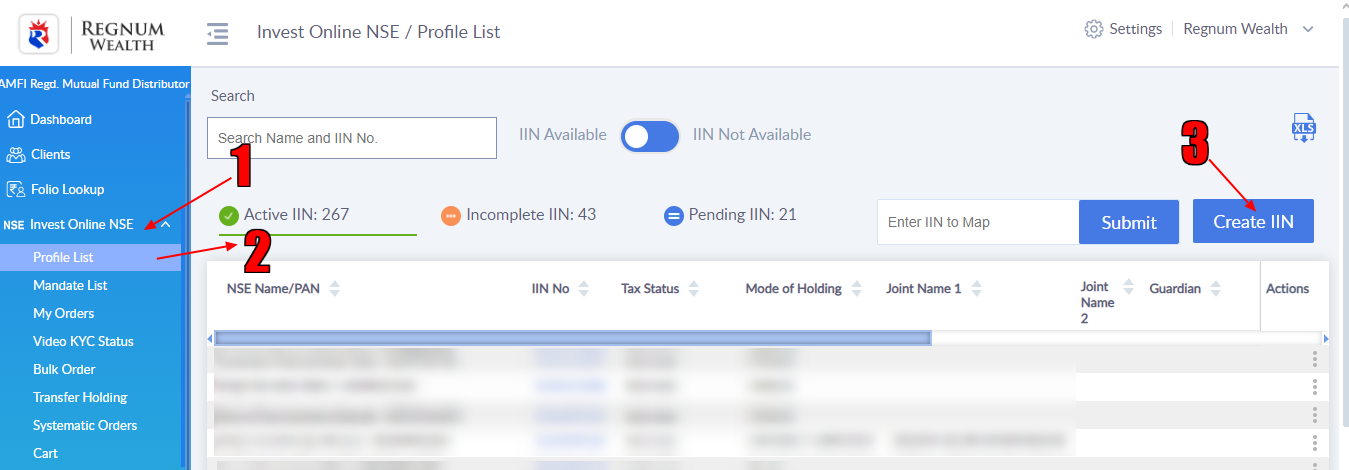
NSE maintains and communicates a clear distinction between Active and Non-Active IIN. Any IIN for which cancelled cheque and IIN Account Opening Form (AOF) has not been submitted can be found in the Incomplete IIN tab.
Use the action menu on the right of the table to submit Cancelled cheque of the primary bank account and upload signed IIN AOF.
To create an IIN for a new client, click on the Create IIN button. This is to be used to create IIN for a client that does not have any folio previously with you.

A IIN form will open which will ask for all the required details to create the IIN. Once you enter the PAN, system will check for KYC for this client. If KYC is not done, then you will see an option to do Video KYC from this step.

You may add up to 5 banks in an IIN. After you complete this form, submit the Account Opening form and cancelled cheque for all the Bank accounts registered in the folio.

The Investor will receive a confirmation email from NSE. They have to click on the link and then It takes 1-2 days for the IIN to get Active.
📝 How to Create Mandate
Hope till now you learn how to create Client.
As mentioned in the title of this section, we will now explore how to create a Client Mandate.
For that just click on INVEST ONLINE NSE -> Profile List

After selecting the Profile List, you will find all your IINs displayed, including Active, Non-Active, and Pending ones.
Search Client name in Search box.

Now click on Action button


After clicking on “Submit Mandate” one Pop-up window will open

Now, Choose the bank where the client wishes to make an investment. (assuming the client has 2 banks and wants to invest from Bank of Baroda so clicked on Bank of Baroda )
Note: Mandate can be done via 2 mode
- Physical Mandate
- NACH